First post. At the start of the school year, I took a Graphic Arts elective to get more comfortable with digital editing and design tools. Throughout the class, we worked with photo manipulation, blending techniques, and layering effects. What I enjoyed most was moving beyond basic cut-and-paste edits and seeing how much you can build from simple visual adjustments.
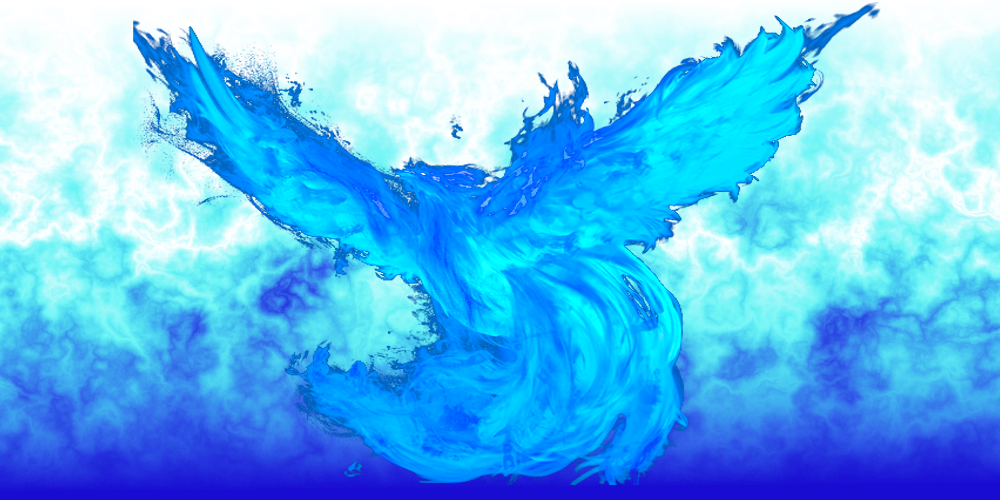
For one of our projects, I decided to create a Water Phoenix in paint.net.
The idea was to take a creature traditionally associated with flame and recreate it entirely out of aquatic textures and cool tones. I found an open-source phoenix silhouette online, isolated it using remove.bg, and edited the body directly to give it an inner glow and clean highlights.
The biggest challenge was creating the surrounding background. Instead of using a stock flame photo, I wanted to generate the blue fire texture from scratch directly inside the editor:
- Set the layer blending mode to Overlay.
- Go to Effects → Render → Clouds.
- Switch the blending mode to Difference.
- Press Ctrl + F about a dozen times to repeat the render, which builds up turbulent, high-contrast ridges.
- Flatten the image.
- Open Adjustments → Curves and set the Transfer Map to RGB.
- Uncheck Red and Green to manipulate the blue curve directly.
- Add and tweak a control point to draw out dynamic range.
- Repeat the adjustment on the green channel to balance the hue toward a vibrant cyan.
The biggest thing I took away from the project was learning how much experimentation is involved in digital design. Sometimes the first set of adjustment curves looks muddy. Sometimes repeating an effect twelve times instead of two completely transforms procedural noise into fluid fire. And sometimes the solution is just spending the time to test small, deliberate tweaks until the piece finally clicks.